Campus Command
Control compatible network audio devices from your phone or tablet
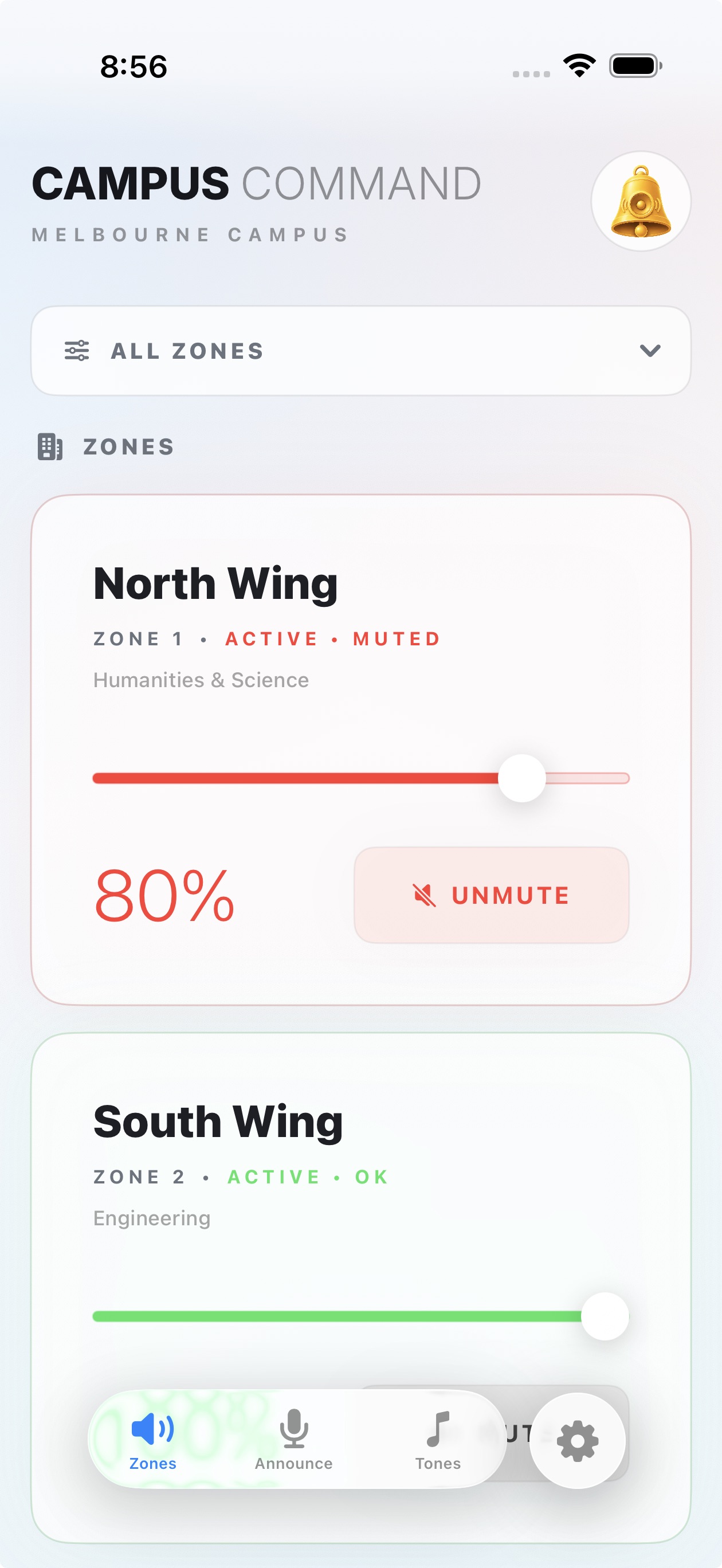
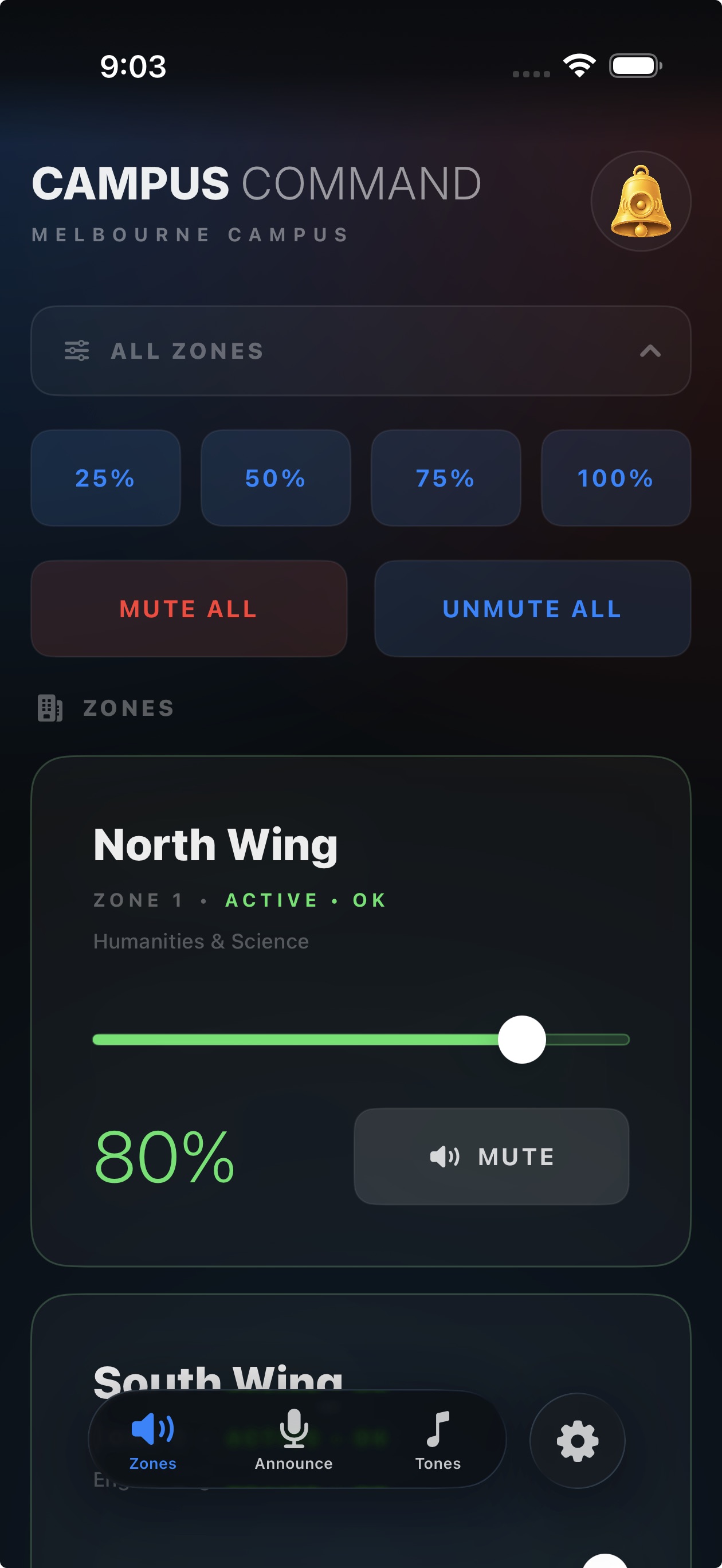
Campus Command turns your phone or tablet into a fast, simple control panel for compatible network audio devices - adjust and monitor volume across multiple audio decoders (zones) and send live audio announcements. You can also play your own tones and sounds from a tap-to-play sound board.
Designed for education, business, and other environments that rely on network audio and paging - schools, campuses, offices, and warehouses. Ideal as a wall-mounted audio controller or for quick access from a mobile device.
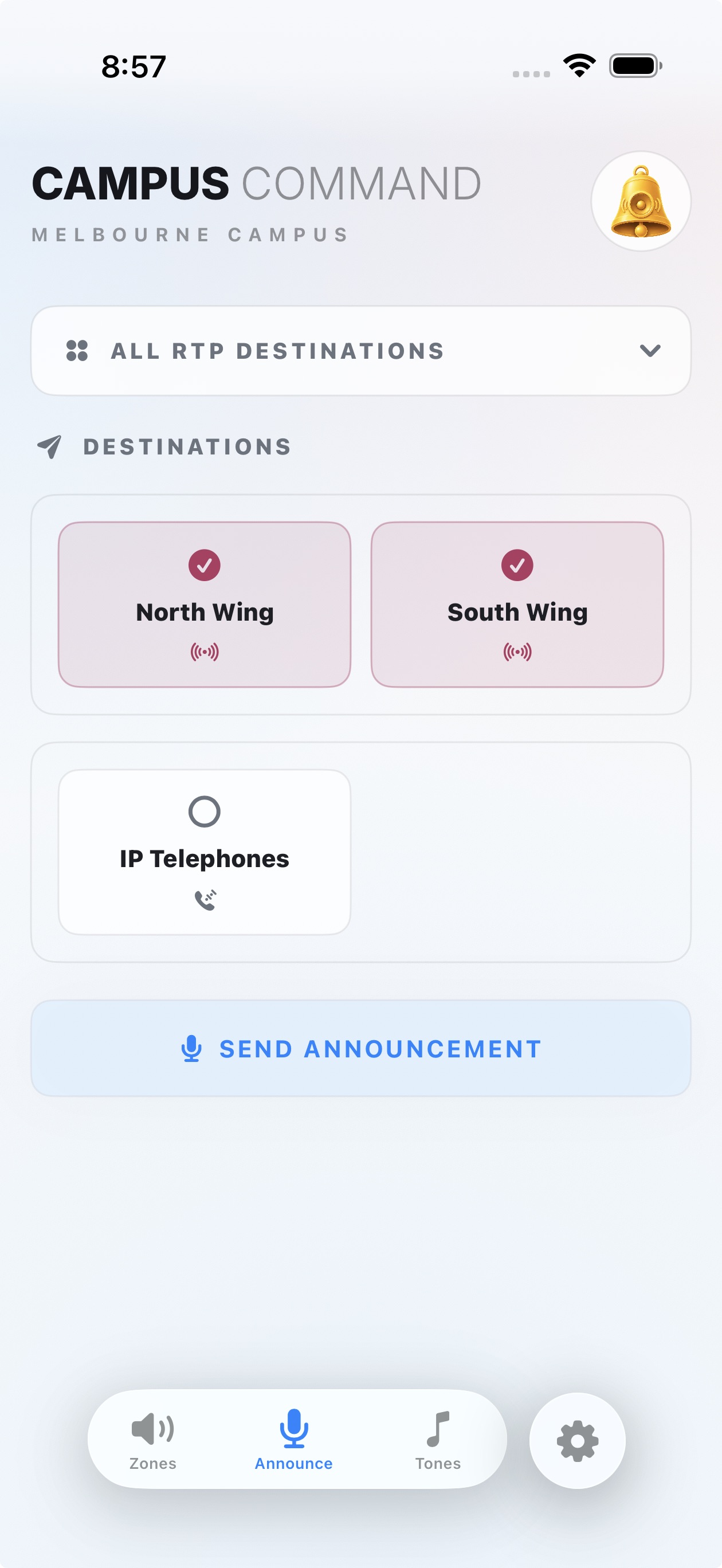
Send live announcements and tones to a wide range of compatible devices - including network speakers, IP phones, intercoms, and public address (PA) systems - using RTP or SIP. Volume control and monitoring are available with compatible Barix* audio devices (see the supported models below).

Features
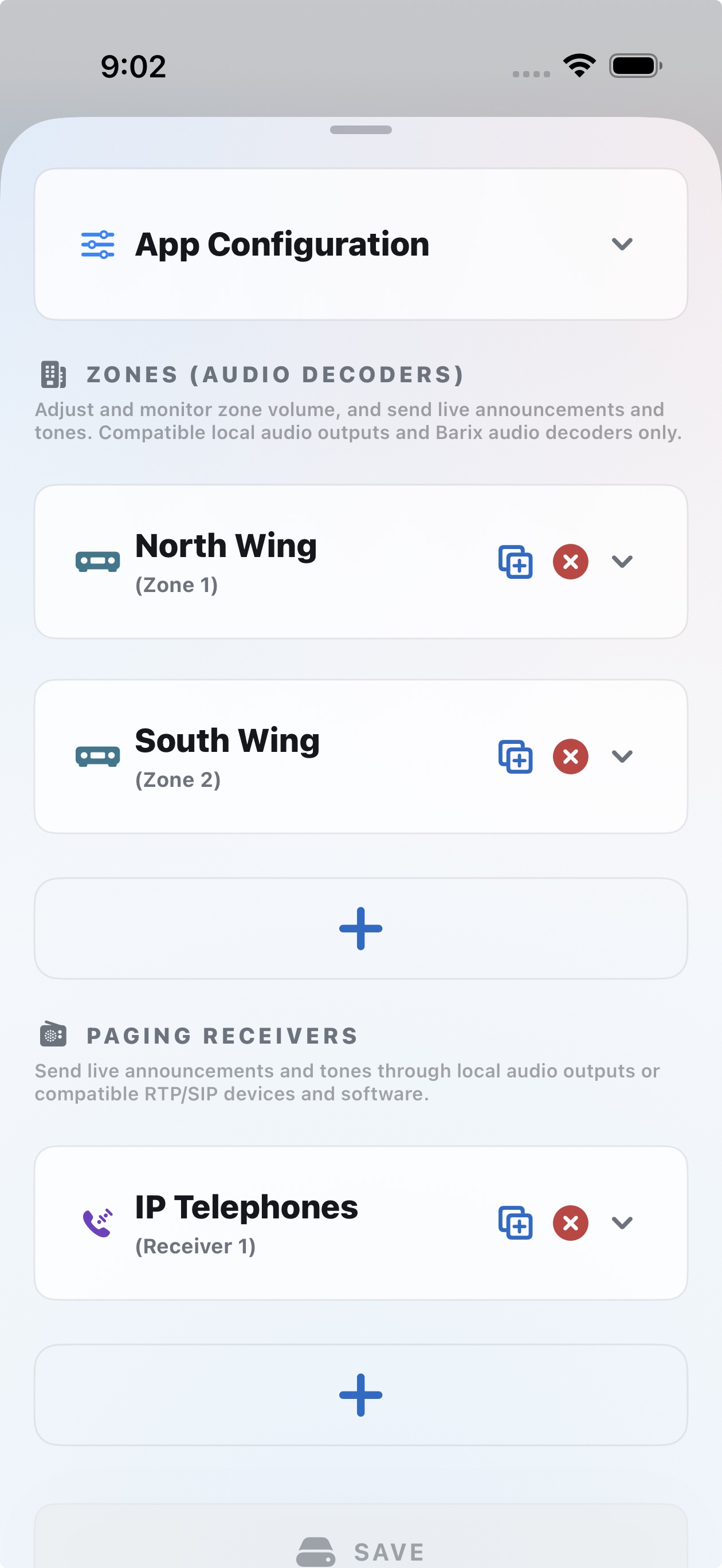
- Adjust and monitor volume across multiple audio decoders (zones) - compatible Barix* devices only (listed below)
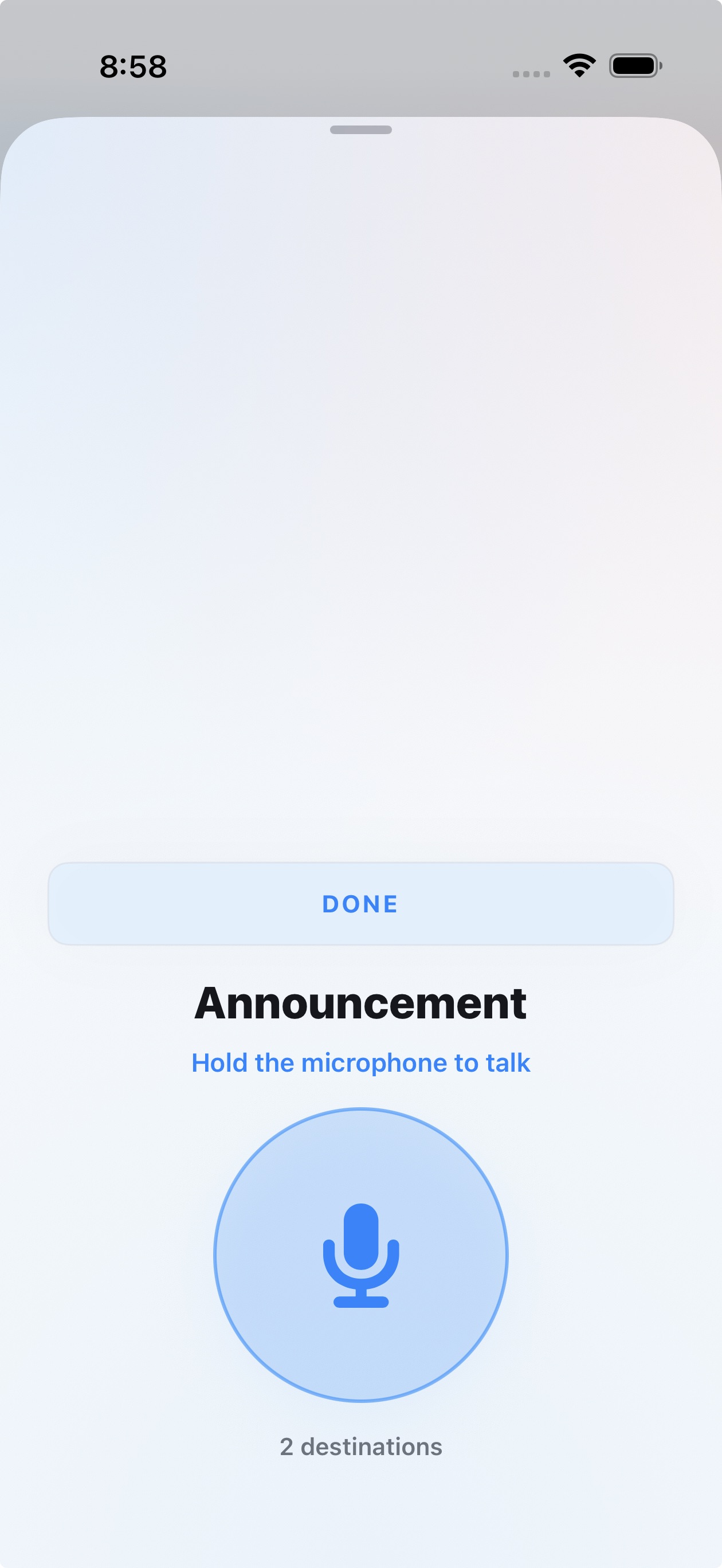
- Send live audio announcements
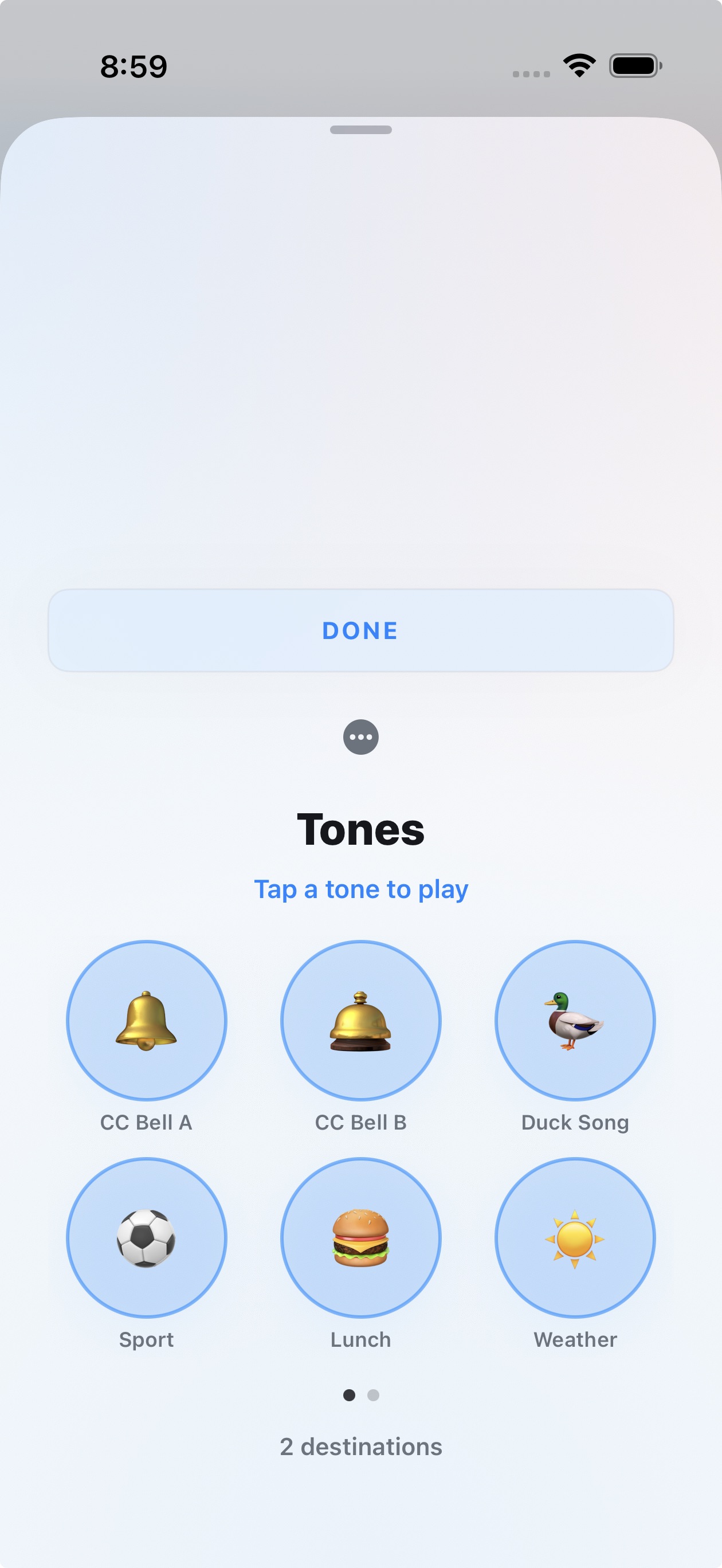
- Play tones and sounds from your own tap-to-play sound board
- Send announcements from the companion app (currently Apple Watch)
- Add multiple audio decoders and paging receivers
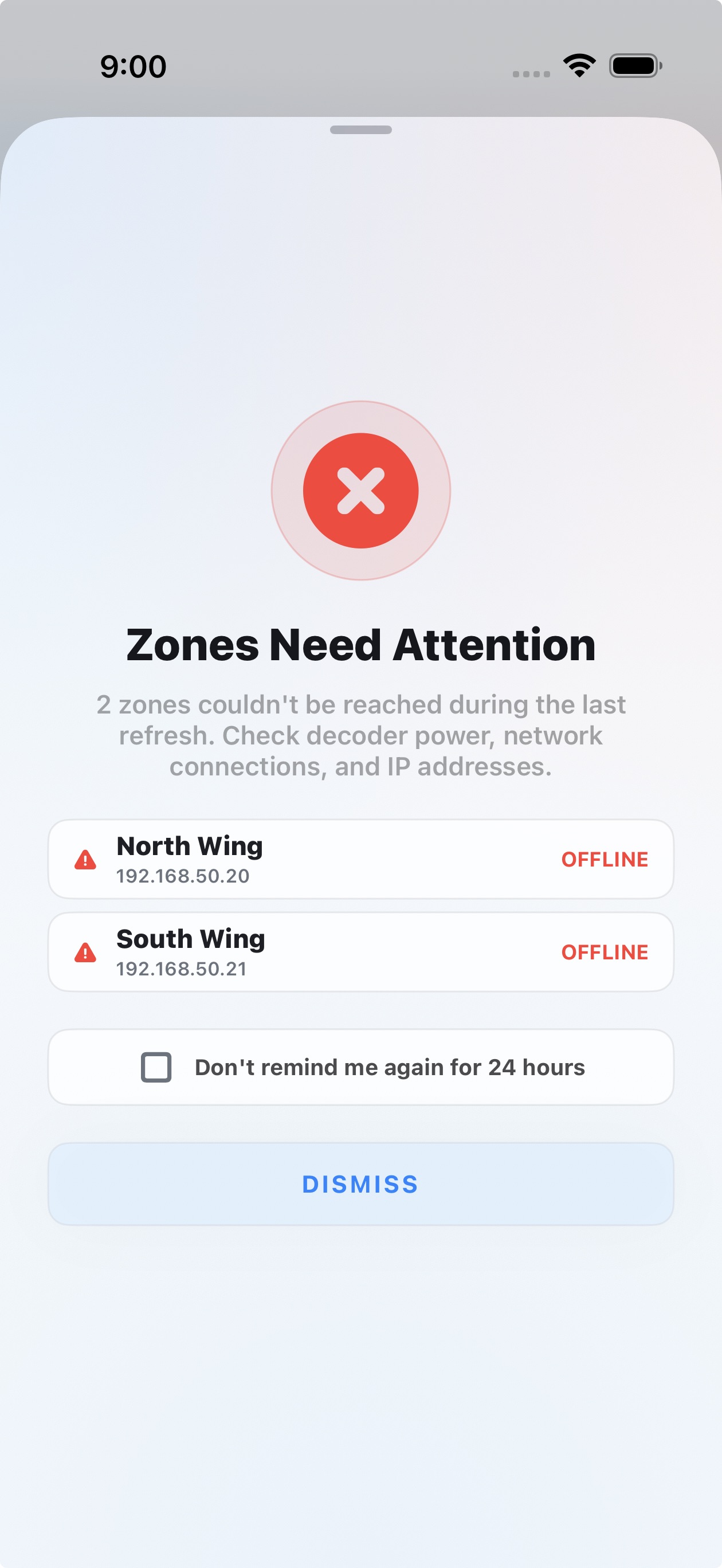
- Receive in-app notifications when zones go offline
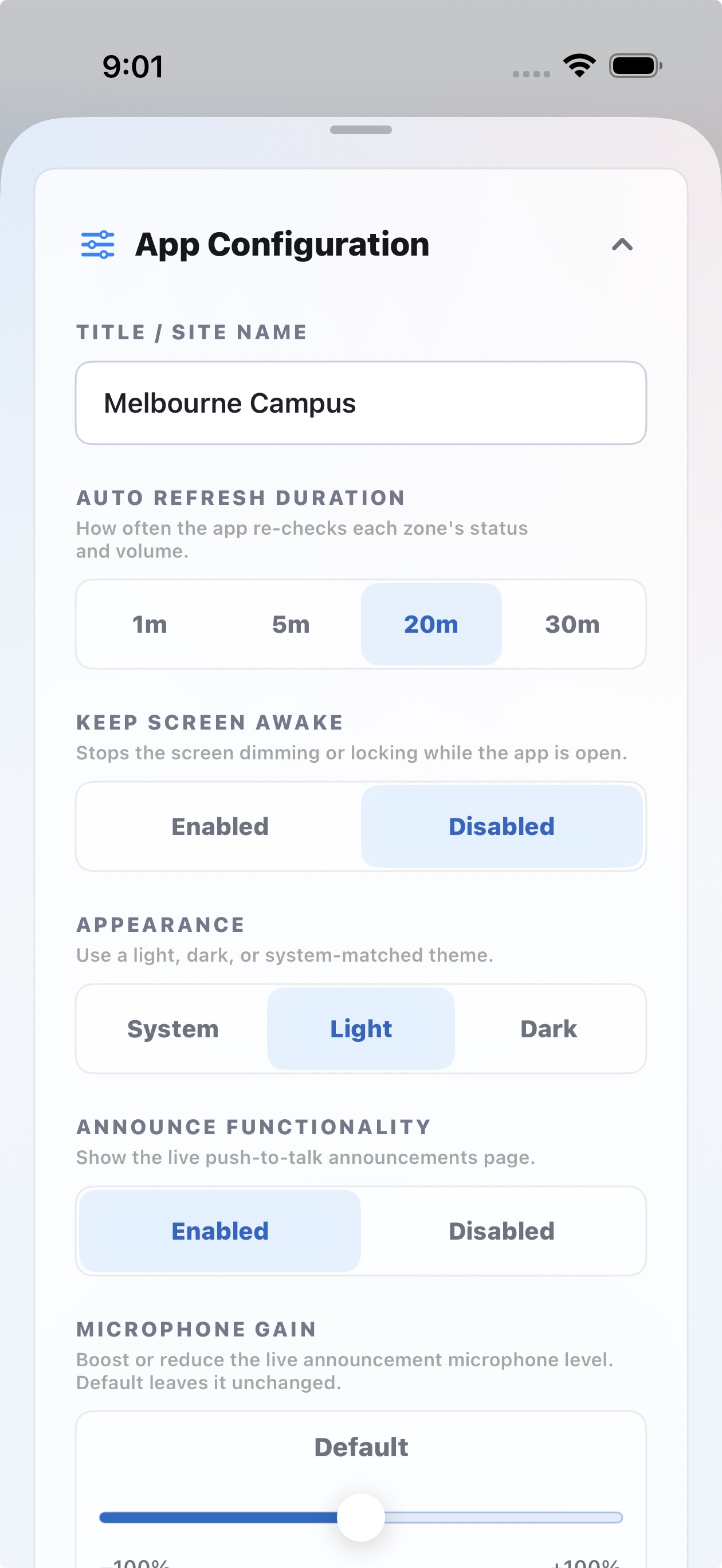
- Save connection settings for quick access
- Simple, responsive interface
Works with Barix audio decoders & network audio
Volume control and monitoring run on compatible Barix* audio decoders - set zone volume, mute and unmute, and keep an eye on each zone's status. Live announcements and tones reach a far wider range of standards-based RTP and SIP receivers, so one setup can drive dedicated decoders alongside the paging hardware you already have.
Supported volume-control hardware
Volume control and monitoring require a compatible Barix device running IP Audio Client firmware 2.12.0 or later:
- Exstreamer M400
- Exstreamer MPA400
- Exstreamer MR400
- IP Former TPA400
- Annuncicom MPI400
Live announcements and tones (RTP or SIP) work with those same models and a broad range of other standards-based receivers.
Smartwatch Companion App
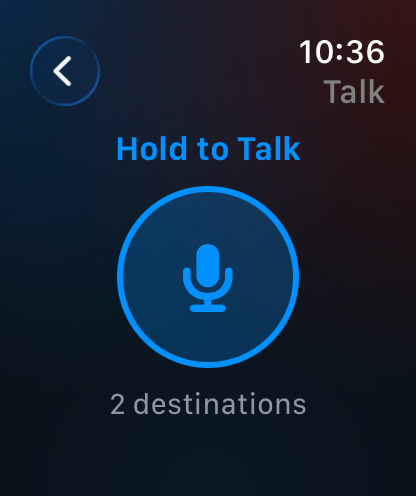
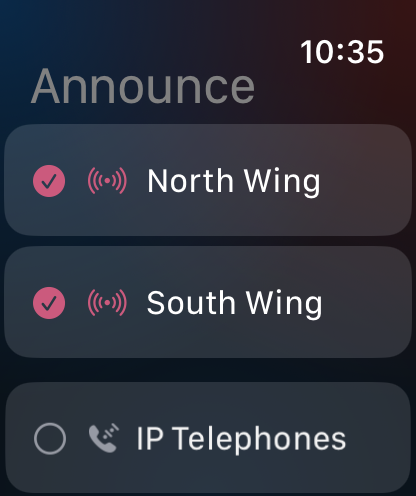
Campus Command includes a companion app for sending announcements from your wrist, currently available on Apple Watch.
The watch relays audio through your paired iPhone, so keep the iPhone on the same network with Campus Command available. On the watch, choose a destination, tap Talk, then press and hold the microphone and speak once it shows Broadcasting.